

by Doc – Owner, Founder, Yes, Still Playing This Game
Wouldn’t you know it, about a month after I finally put down TCG Card Shop Simulator to play something else for the first time in 3 months, it gets updated! I played with the same save file the entire time up to 351 in-game days, eventually upgrading it to a mod that introduces Pokémon cards over the original art designs as well as four new categories of booster packs. There’s just one problem – at this time of writing, basically every mod that has released for this game has been rendered partially or completely defunct. RIP to all the mods for this game.
Everyone’s favorite mod is the plug-in that most players had downloaded, which allowed players to hold up to 1024 card packs at a time and to open them very quickly. Of course, because TCG Card Shop Simulator is the sort of game that uses time as its bottleneck as opposed to any in-game resource, those mods became very overpowered very quickly. All you had to do was get to a point in the game where you could afford about a thousand booster packs, which would only set you back about $2,000 at the minimum, and in the course of opening those thousand booster packs you almost certainly pulled several thousand dollars of cards. (I did do a test save file where I only opened booster packs and insta-sold the cards I pulled and it turns out that using the base set booster packs and selling everything, even the scrap cards will earn you about a 550% return for your money on average. In other words, that first $1,000 of booster packs that you’re given at the start of the game, when you sell every card you’re given, should net you about $5,500). Typically if you open a few hundred booster packs, you will pull one or two very high dollar cards that pay for the value of the entire set of booster packs, and then several middle value cards that are pure profit. And since the price of booster packs never adjusts to match the value of the cards inside (unlike real life Pokémon cards) you will always make a sizable profit if you open at least a few hundred booster packs.
The dev, to his credit, spotted the popularity of those mods and has implemented that functionality directly into the game! Starting at level 16, and for $3,000, you can buy a machine that will AFK open card packs for you. Good for him! Between that and card grading, I think this is a great update to a game that I have already enjoyed immensely. It’s a good thing too. The gambling aspect of the booster packs is one of the most fun parts of this game, and all the mods being broken would sure ruin the experience somewhat.
But that doesn’t mean we can’t cheat.
I started up a new, vanilla save file to start the game over again from day one in the new update. Unfortunately, without opening thousands of booster packs, getting experience to level up in this game takes a very long time. There is a workaround for that, and it doesn’t even require any mods. (It can’t require mods – they’re all broken!)
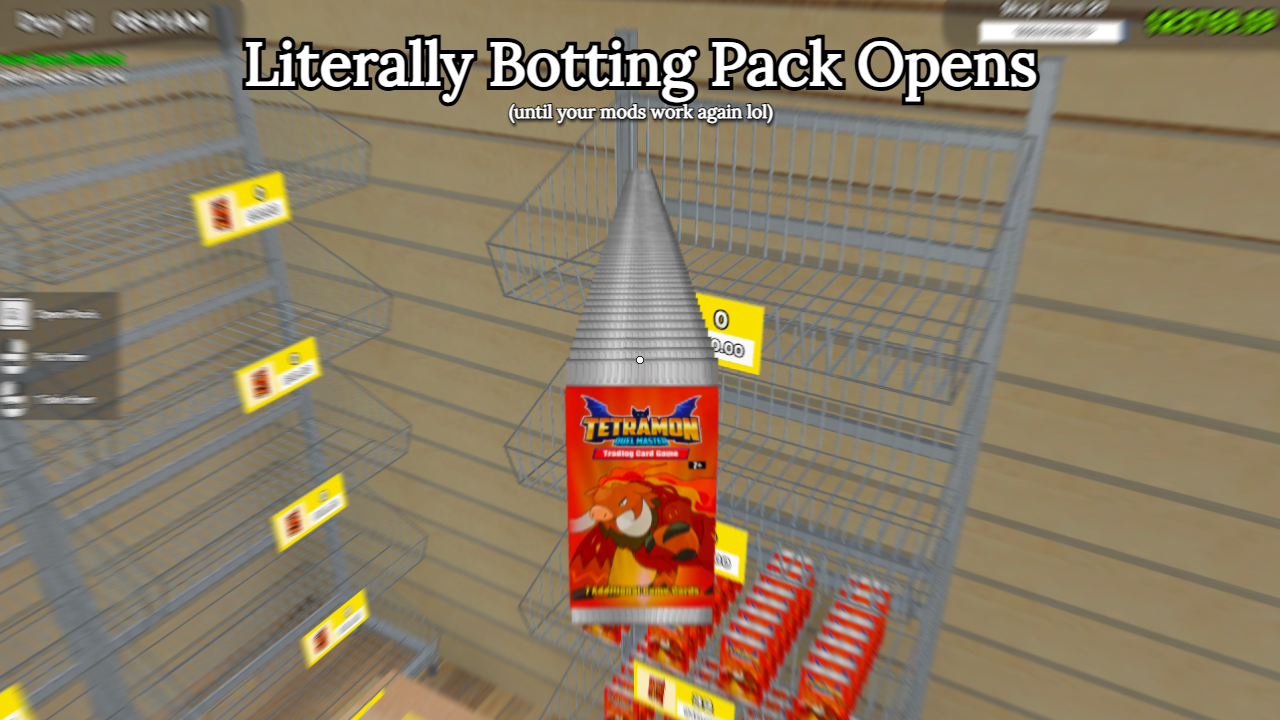
I used a solution familiar to any PVP player in old school RuneScape. I had chatGPT, on the free tier, write a Python program with a GUI that will basically alternate between clicking the mouse button and not clicking the mouse button for 1 second at a time. In other words, it’s an auto hotkey solution. Normally, this wouldn’t work because you can only hold eight booster packs at a time in the game. However, the fast pack opener mods that everyone had been using from Nexusmods still have some limited functionality. While they can’t open cards any faster (actually, if you have the mod activated while you’re holding cards, you’ll have to wait a full 10 seconds to transition to the next pack) they can still be used to enable you to hold 1,024 booster packs in your hand at one time. So all you need to do is to activate the mod, pick up the booster packs you plan to pick up, disable the mod, and then turn on the program I have copied and pasted below.
Running the Clicker Program
To run the program, first you need to install Python and pynput (if you don’t know how to install Python, ask chatGPT or find a tutorial online. It’s really quite simple.) After you’ve installed Python, just press your Windows key and R at the same time, type ‘cmd’ into the window that pops up, and it will open up your Windows terminal. Then type:
pip install pynput
That will install pynput if you don’t already have it installed for some reason.
Next, open up a notepad file and copy paste this into it:
import tkinter as tk
from tkinter import ttk, messagebox
import threading
import time
from pynput import mouse, keyboard
from pynput.mouse import Button, Listener as MouseListener
from pynput.keyboard import Key, Listener as KeyboardListener

class AutoClicker:
    def __init__(self, root):
        self.root = root
        self.root.title("Auto-Clicker")
        self.root.geometry("400x300")
        self.root.resizable(False, False)

        # Variables
        self.is_clicking = False
        self.trigger_key = 'f6'  # Default trigger key
        self.click_rate = 30  # 30 clicks per second
        self.click_delay = 1.0 / self.click_rate

        # Mouse controller
        self.mouse_controller = mouse.Controller()

        # Keyboard listener
        self.keyboard_listener = None

        # Threading
        self.click_thread = None
        self.stop_event = threading.Event()

        self.setup_gui()
        self.start_keyboard_listener()

    def setup_gui(self):
        # Main frame
        main_frame = ttk.Frame(self.root, padding="10")
        main_frame.grid(row=0, column=0, sticky=(tk.W, tk.E, tk.N, tk.S))

        # Title
        title_label = ttk.Label(main_frame, text="Auto-Clicker", font=("Arial", 16, "bold"))
        title_label.grid(row=0, column=0, columnspan=2, pady=(0, 20))

        # Click rate
        ttk.Label(main_frame, text="Clicks per second:").grid(row=1, column=0, sticky=tk.W, pady=5)
        self.rate_var = tk.StringVar(value=str(self.click_rate))
        rate_entry = ttk.Entry(main_frame, textvariable=self.rate_var, width=10)
        rate_entry.grid(row=1, column=1, sticky=tk.W, pady=5)
        rate_entry.bind('<KeyRelease>', self.update_click_rate)

        # Trigger key
        ttk.Label(main_frame, text="Trigger key:").grid(row=2, column=0, sticky=tk.W, pady=5)
        self.key_var = tk.StringVar(value=self.trigger_key)
        key_entry = ttk.Entry(main_frame, textvariable=self.key_var, width=10)
        key_entry.grid(row=2, column=1, sticky=tk.W, pady=5)
        key_entry.bind('<KeyRelease>', self.update_trigger_key)

        # Status
        ttk.Label(main_frame, text="Status:").grid(row=3, column=0, sticky=tk.W, pady=5)
        self.status_var = tk.StringVar(value="Stopped")
        status_label = ttk.Label(main_frame, textvariable=self.status_var, foreground="red")
        status_label.grid(row=3, column=1, sticky=tk.W, pady=5)

        # Buttons frame
        button_frame = ttk.Frame(main_frame)
        button_frame.grid(row=4, column=0, columnspan=2, pady=20)

        # Start/Stop buttons
        self.start_btn = ttk.Button(button_frame, text="Start", command=self.start_clicking)
        self.start_btn.grid(row=0, column=0, padx=5)

        self.stop_btn = ttk.Button(button_frame, text="Stop", command=self.stop_clicking, state="disabled")
        self.stop_btn.grid(row=0, column=1, padx=5)

        # Instructions
        instructions = """Instructions:
1. Set your desired click rate (clicks per second)
2. Set your trigger key (e.g., 'f6', 'space', 'ctrl')
3. Click Start or press your trigger key to begin
4. Click Stop or press trigger key again to stop
5. The cursor will click at its current position"""

        instruction_label = ttk.Label(main_frame, text=instructions, justify=tk.LEFT,
                                    font=("Arial", 9), foreground="gray")
        instruction_label.grid(row=5, column=0, columnspan=2, pady=(20, 0), sticky=tk.W)

    def update_click_rate(self, event=None):
        try:
            rate = float(self.rate_var.get())
            if rate > 0:
                self.click_rate = rate
                self.click_delay = 1.0 / self.click_rate
        except ValueError:
            pass

    def update_trigger_key(self, event=None):
        self.trigger_key = self.key_var.get().lower()

    def start_keyboard_listener(self):
        if self.keyboard_listener:
            self.keyboard_listener.stop()

        self.keyboard_listener = KeyboardListener(on_press=self.on_key_press)
        self.keyboard_listener.start()

    def on_key_press(self, key):
        try:
            # Handle regular keys
            if hasattr(key, 'char') and key.char:
                pressed_key = key.char.lower()
            else:
                # Handle special keys
                pressed_key = str(key).replace('Key.', '').lower()

            if pressed_key == self.trigger_key:
                if self.is_clicking:
                    self.stop_clicking()
                else:
                    self.start_clicking()
        except AttributeError:
            pass

    def start_clicking(self):
        if not self.is_clicking:
            self.is_clicking = True
            self.stop_event.clear()
            self.status_var.set("Running")
            self.start_btn.config(state="disabled")
            self.stop_btn.config(state="normal")

            # Start clicking in a separate thread
            self.click_thread = threading.Thread(target=self.click_loop)
            self.click_thread.daemon = True
            self.click_thread.start()

    def stop_clicking(self):
        if self.is_clicking:
            self.is_clicking = False
            self.stop_event.set()
            self.status_var.set("Stopped")
            self.start_btn.config(state="normal")
            self.stop_btn.config(state="disabled")

    def click_loop(self):
        while self.is_clicking and not self.stop_event.is_set():
            try:
                self.mouse_controller.click(Button.left, 1)
                time.sleep(self.click_delay)
            except Exception as e:
                print(f"Click error: {e}")
                break

    def on_closing(self):
        self.stop_clicking()
        if self.keyboard_listener:
            self.keyboard_listener.stop()
        self.root.destroy()

if __name__ == "__main__":
    # Check if required modules are installed
    try:
        import pynput
    except ImportError:
        print("Error: pynput module is required. Install it with: pip install pynput")
        exit(1)

    root = tk.Tk()
    app = AutoClicker(root)
    root.protocol("WM_DELETE_WINDOW", app.on_closing)

    try:
        root.mainloop()
    except KeyboardInterrupt:
        app.on_closing()
This is the entire source code for the program. Save it as a .py file and as “All Files”, not as “.txt file” in the save menu, and it should be recognized as a Python file now.
From there, you should have the program all set up and ready to run. Now just turn on that program once you have the booster packs in your hand, press R to bring them up, hit the hotkey you selected in the program, and let it rip! Literally! You’ll find that it will not be as fast as the fast opener mods or the device in the game that opens them for you, but it is perfectly AFKable and lets you attend to other things while your game is opening cards in the background. It’s a pretty good alternative to fast-pack mods until they’re updated for the 0.60 update.

 Amiibo Doctor